1. Has the insulation strip been removed?
Please Check for a transparent or black insulating strip on the bottom of the battery. Ensure it has been removed.
2. Trying a different charger.
Has the battery charged successfully before? Consider trying a different charger to determine if it's a charger issue. Typically, it takes about 14 hours to fully charge using a 5V1A charger
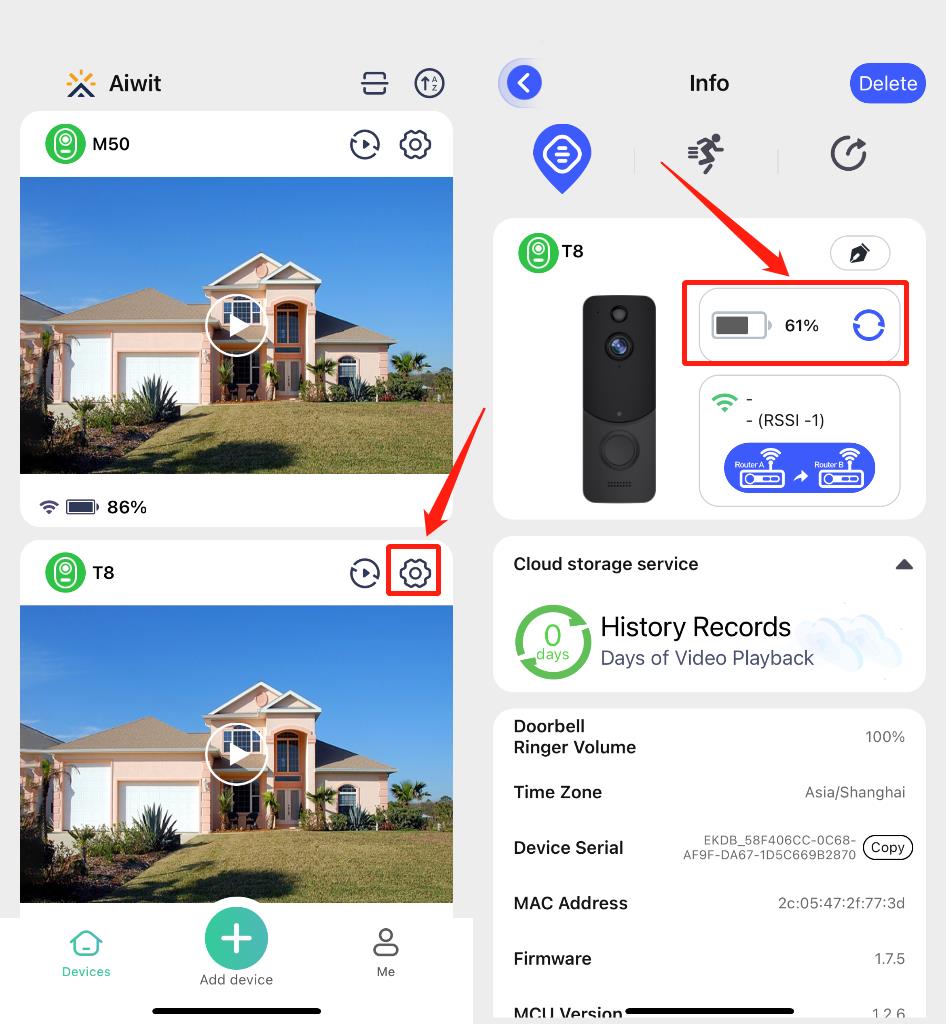
You can check the battery charging status on the real-time preview interface, device information in settings, and device interface under the camera main image.
What kind of battery does the Doorbell Camera use?
This doorbell camera uses 18650 batteries, which you can search for on Amazon by typing "doorbell 18650 battery".
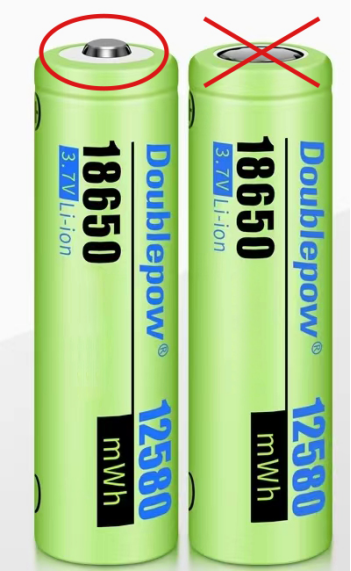
You should be able to find this type of battery on Amazon or at your local supermarket. Please note that the pointed end battery on the left side of the image below is the correct type.
Why doesn't my phone receive notifications when the Doorbell Camera is pressed?
Ensure that all notification settings are turned on:
1. Check your phone's settings:
• Open the "Settings" on your phone
• Go to "Application Manager" and/or "Notification Settings"
• Find the Aiwit app
• Make sure all authorizations and notifications for Aiwit app are turned on.
• Check the notification settings within the Aiwit app - make sure notifications are enabled.
2. Check battery optimization and try turning it off.
3. To receive notifications, please turn off "Silent Notifications". The "Silent Notifications" setting is on the "Me" page. Click to enter and turn it off.
4. Check your phone's "Focus" feature and make sure Aiwit app is on the whitelist.
Reasons for Doorbell Camera being offline.
Being offline means the device is disconnected. There are 2 possible reasons:
1. The device runs out of power.
Is there any light on doorbell when you ring the bell? If no, this means no power, and you need to charge it first.
2.Wi-Fi is weak, and it disconnected from Wi-Fi. Please improve Wi-Fi and reconnect with Wi-Fi.
3.When Wi-Fi is not stable, it is likely to get offline or delay often. You can also try restarting the router, then reconnecting the Wi-Fi to see if it will help. It is very important that the device gets good Wi-Fi, as it is outside of house.
Restoring the connection when the Doorbell Camera is offline.
1. Make sure your device still has power. If there is no power, please charge it first.
2. Try ringing the doorbell, see if it will get back online.
3. Remove the batteries, and put them back in to see if the device will get back online.
4. If it still doesn't work, please reset the device and add it again in the app. To reset, press and hold the front doorbell button (the one used to ring the bell) for around 8 seconds, and then you will hear "entering pairing mode." Then tap the "+" icon on the device page to add the device again.
Resetting the Doorbell Camera.
For doorbell cameras:
To reset the device, please follow these steps:
1. Press and hold the doorbell button (the button used to ring the bell) for about 8 seconds until you hear "enter pairing mode."
2. Click the "+" icon on the device page to re-add the device.
For security cameras:
1. Press and hold the reset button on the back of the camera until the red light flashes and you hear "enter pairing mode."
2. Click the "+" icon on the device page to re-add the device.
Why doesn't the chime ring?
Does the chime light up when you plug it in? If so, please follow the instructions to try bringing the chime closer to the doorbell and then re-pair them.
Resolving the app crashes.
1. Refresh the Aiwit app and try again.
2. Upgrade the app to the newest version.
3. Uninstall and then reinstall the app.
The Doorbell Camera fails to connect to the network.
1. Device supports 2.4G Wi-Fi only.
This device is compatible with 2.4GHz Wi-Fi only. If your router provides both 2.4GHz and 5GHz Wi-Fi, set different names for 2.4GHz and 5GHz networks. Connect your device to the 2.4GHz Wi-Fi. If the names for 2.4G and 5G are the same, our device cannot distinguish between them, and pairing with Wi-Fi will fail.
2. Ensure Correct Password Entry
Make sure you enter the correct Wi-Fi name and password.
3. Check Distance Between Device and Wi-Fi Router
Ensure that your Wi-Fi is stable. If necessary, consider relocating your router to improve your device's Wi-Fi signal. Ideally, the device should be within 33ft (10 meters) of the router.
4. Properly Scanning a QR Code
When scanning, please ensure that:
a. Nothing is obstructing the camera lens (sometimes there may be protective tape on the lens).
b. Adjust the distance when scanning.
c. There is no reflective light on the screen while scanning.
Why can't I change doorbell camera’s settings?
Only the owner account can change settings, delete videos, and share the device. Shared accounts don't have these options.
How many users can view the doorbell camera at the same time?
The owner account can share with up to 8 other accounts. Up to 3 users may view the video feed at one time, but only 1 user can use the intercom
Does this Doorbell Camera need Wi-Fi?
This camera needs to be connected to a 2.4Ghz Wi-Fi network. However, after the initial connection, you can access the camera from your smartphone using either mobile data or Wi-Fi.
The cable for the solar panel is 9.8ft (3m) long.
Does this Doorbell Camera record 24/7 or only when motion is detected?
This device doesn't support constant 24/7 recording. It utilizes cloud storage to accommodate events-only recording, not continuous capture.
Here are scenarios when the device initiates recording:
· Live View: When you access real-time video through the app, the device will activate. In this scenario, it won't send notifications.
· Motion Detection: The device is engineered to detect motion. It starts recording and sends an alert once it senses motion within its visual range.
Does this Doorbell Camera need an SD card and what capacity?
This device does not support SD card storage. However, we have developed surveillance cameras in response to user feedback and requests, which do offer cloud storage (sold separately). Here are the benefits of using cloud storage:
Long-term Reliability: You don't need to worry about the risk of the card wearing out or encountering technical issues over time. With cloud storage, your videos are securely stored in the cloud, eliminating the risk of storage device failure.
Protection Against Theft: If your device gets stolen and you're relying on SD card storage, the loss of the device will also mean the loss of your recorded videos. On the other hand, cloud storage ensures that your videos are safe even if the physical device is stolen.
Does this Doorbell Camera support UPNP protocol?
No, it does not support UPNP protocol.
How wide of view does it capture at about 10 feet away?
This camera is equipped with a wide-angle lens that allows it to capture a wide view of 17ft.
What is the detection range?
This camera has a wide angle lens that captures a wide view of roughly 17 feet.
Yes, you can use it without the solar panel. Also, the device has a built-in battery that can be charged via a USB port when there is no solar panel.
Do you have to subscribe to watch in real time and record on SD cards? Can this Doorbell Camera be used with an SD card with paying for any subscription for cloud?
This camera supports real-time viewing but does not support recording to an SD card. The videos will only be stored if you have a Cloud subscription service. You can enjoy a 30-day free trial period. No charges will apply during this time. If you're satisfied, the subscription will automatically start after the trial period ends. However, if you're not completely satisfied, you can cancel the subscription within the 30-day trial period without any charges.
Is the subscription $30 per month or year?
Go to the video playlist and click on any video. This will open the cloud storage subscription page, where you can select the plan that best meets your requirements.
Normally, The annual subscription cost is $29.99, though this may vary based on the specific cloud storage provider. However, when you subscribe to our service, you will receive a 30-day free trial period. During this time, you can enjoy the service at no cost. After the 30-day trial period ends, the subscription charges will begin. We encourage you to complete the subscription and take advantage of the free trial. If, within the 30-day trial period, you decide that the service is not suitable for you, you can cancel it without incurring any charges.
How many Doorbell Cameras can this work on?
You can use as many cameras as you like and add them to your Aiwit account.
Did the battery charge before?
Yes, the batteries have been pre-charged.
Yes, each camera requires a solar panel for charging. This approach enables it to supply sustainable power for the device throughout the year.
Will this work on a mesh network, without separating the 2.4GHz and 5GHz bands?
No, this device can only use 2.4GHz Wi-Fi. This means you need to separate your Wi-Fi into two parts: one for 2.4GHz and another for 5GHz. If your router gives both 2.4GHz and 5GHz Wi-Fi, make sure each one has a different name. Connect your device to the 2.4GHz Wi-Fi. If both Wi-Fi types have the same name, our device can't tell them apart and won't be able to connect properly.
How do I reconnect the Doorbell Camera to my Wi-Fi?
When your device loses its connection, it will attempt to automatically reconnect to your Wi-Fi. However, if it doesn't, please follow these steps.
1. If your device is offline, you can manually reconnect it to your Wi-Fi via its settings.
2. Ensure your Wi-Fi connection is stable. You might need to relocate your router to strengthen the signal if required. Unstable Wi-Fi can often lead to connection drops or delays. Maintaining a robust Wi-Fi signal is particularly crucial as the device is located outdoors. In addition, consider integrating a Wi-Fi extender into your network setup to boost the signal strength.
Why is my Wi-Fi signal poor?
Your device may be too far away from your wireless router, or there may be obstructions in between that reduce signal strength. You might try repositioning your router or getting a signal extender/repeater for your wireless router.
Can the Doorbell Camera work with wire?
No, it does not work with wire.
Yes, you can rewind recorded videos, but only if you subscribe to cloud storage.
Can 2 people connect to the same Doorbell Camera?
Yes, you can register two different accounts. Add the device to Account A and share it with Account B. For example, if you want your device to appear on your family member's phone, your family member needs to download our Aiwit app, register, and create their account. Then, you can share the device with them.
How do I put the Doorbell Camera up? Does it comes with mount?
There are two types of mounting methods available:
1.The camera comes with a base bracket and mounting screws for easy installation.
2.There's also an option to use 3M adhesive. This allows you to stick the device directly onto the wall.
How do I remove battery tab?
First, take the back cover off your camera. Then, you'll see a piece called the battery tab. Just pull on that to get it off.
How long does a charge last?
Batteries should last between 1 to 3 months on a single charge, but it still depends on how much activity your doorbell camera is recording. The more events captured by your device, the more your battery is used. Using Live View often can also drain your battery faster. If your device is capturing an excessive number of events each day, you will likely need to recharge your battery sooner.
How do I know if the batteries are charging? Are there any lights? Mine has no lights.
You can check the battery charging status on the real-time preview interface, device information in settings, and device interface under the camera main image
How do I connect the indoor charm? I have it plugged in, but it's not playing a sound when the bell is ringing.
We apologize for the confusion, but this doorbell camera cannot be connected to the indoor chime. Please use the included chime instead.
Does this Doorbell Camera send real-time notifications?
Absolutely, the doorbell sends you instant alerts whenever someone pushes the doorbell button or when it senses motion.
Is the cloud storage compatible with iPhone? Also is the cloud storage only good for 1 year? What happens after 1 year after purchasing the storage.
Yes, you can use the cloud storage with your iPhone. If you opt for a one-year cloud storage plan, it will last for a year. Once this period is over, you will have to pay to use it.
After the trial period, is there any cloud storage available at all, or is it only available if you pay for it?
Unfortunately, no. You have to pay to use it after the trial period.
Does this work with Alexa, Google Home, or Amazon Echo?
No, this device does not support Alexa or Google home. You can only view the video by using the Aiwit app.
The blue flashing light indicates that the device is recording.
Flashing red indicates that the device has disconnected from Wi-Fi or is waiting to reconnect to Wi-Fi.
Flashing blue and red means that the battery is low.
You can see live and talk to visitors using the camera, but can't watch recorded videos. Try the app's free subscription trial.
The videos will only be stored if you subscribe to a cloud service.
You can enjoy a free trial period. No charges will apply during this time.
If you're satisfied, the subscription will automatically start after the trial period.
However, if you're not completely satisfied, you can cancel the subscription within the trial period without any charges.